Setting Up Two-Factor
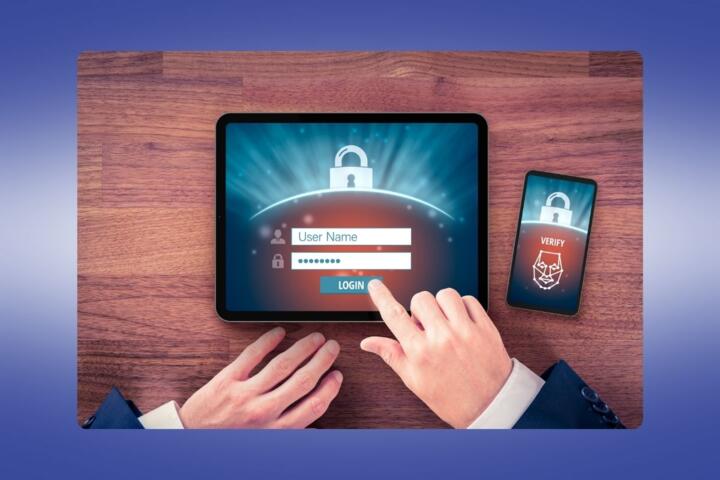
Two-factor authentication (2FA) requires two proofs to access an account: something you know, like a password, and something you have, such as a phone or hardware token. This adds another roadblock against attackers. For example, Google reported over 650,000 phishing sites blocked daily by 2FA protections in 2023. By adding a step to the login, 2FA reduces stolen-password breaches by 99.9%, according to Microsoft.
Practical: when you enter your password on a service like Apple ID, you'll next receive a code on your phone app or a push notification to confirm it’s really you. You can even use a USB security key to tap instead of typing a code. Two-step verification is the same concept but can lack security details some 2FA standards provide.
Common Setup Errors
Setting up 2FA wrongly undermines its protection. Many skip backup methods or ignore recovery codes, locking themselves out later. Others rely on SMS-based codes, which are vulnerable to SIM swap attacks; over 60% of breaches exploiting 2FA use this method as a weak link.
Missing updates in authenticator apps or neglecting account-wide 2FA enforcement also leaves accounts exposed. For example, if one forgets to secure email accounts with 2FA, hackers can reset other linked passwords easily. These errors often stem from hasty or incomplete configurations that create a false sense of security.
How to Set Up 2FA Right
Choose Authenticator Apps
Pick apps like Google Authenticator, Authy (version 6.1.2 fixed syncing issues), or Microsoft Authenticator. These generate time-based codes independent of SMS, cutting interception risks. They work offline, so no network needed. For instance, Authy syncs codes across devices, which is handy but may risk multi-device compromise; weigh pros and cons.
Use Hardware Security Keys
Hardware keys like YubiKey and Titan Security Key provide physical presence for 2FA. They use protocols like FIDO2 to verify login without codes. Enterprises see 90% breach reduction after adopting non-SMS keys. They prevent phishing because an attacker can’t replicate the key. Plug in or tap; done. The only downside: you must keep track of the key.
Set Up Backup Options
Save recovery codes offline—printed or in password managers like 1Password or Bitwarden. This step stops account lockdowns if devices are lost. Don’t store these codes on the same device as the authenticator app. Many overlook this, which becomes costly later. Avoid guessing recovery email addresses or phone numbers when setting this up.
Enforce 2FA on All Accounts
Security chains are as strong as their weakest link. Enable 2FA on email, banking, social media, and work apps. Google’s “Account Security Checkup” tool lists where 2FA is off for your account. Average users use 3-5 web services daily; leaving any critical one unprotected invites attacks. Corporate admins should mandate 2FA across workforce accounts.
Disable SMS Codes Whenever Possible
SMS 2FA is vulnerable to interception. If your provider supports app-based or key-based authentication, switch immediately. NIST advises phasing out SMS for 2FA. That little SMS text you think is convenient? Skip it. It adds risk without real security benefit.
Keep Software Up to Date
Update authenticator apps and device operating systems regularly. Security patches fix vulnerabilities that could be exploited to bypass 2FA. An outdated iOS version from 2 years ago can jeopardize Apple’s own 2FA. Regular updates close attack windows often ignored in corporate environments.
Monitor Account Activity
Use notifications for new device logins or unusual locations. Services like Google or Microsoft send alerts instantly if suspicious attempts occur. Act on these quickly, such as revoking access or changing passwords. This metric alone cuts breach damage by at least 50%, says a 2022 cybersecurity report.
Leverage Password Managers
Enter 2FA codes manually, or use password managers with built-in TOTP code capabilities like Bitwarden or LastPass. This reduces errors during code input and speeds logins. Also, these tools safely store backup codes alongside passwords. But remember, one master password controls everything—choose wisely.
Real 2FA Cases
A medium-sized tech firm lost $120,000 due to a phishing attack in 2021. Post-incident, they deployed YubiKeys for all employees and disabled SMS 2FA. Within six months, no successful phishing breaches happened. User complaints dropped 30% probably due to faster, simpler logins.
Another example: a freelance graphic designer relied only on password-based Gmail access. Post hack, she set up Google Authenticator, secured recovery codes offline, and added 2FA to all client platforms. Her account hacking attempts fell to zero despite three phishing emails monthly.
Checklist for Setup
| Step | Action | Result | Tool/Method |
|---|---|---|---|
| 1 | Download authenticator app | Offline codes generation | Google Authenticator, Authy |
| 2 | Enable 2FA on key accounts | Reduced breach risk | Settings on email, bank |
| 3 | Save backup codes offline | Recovery if device lost | Print or secure vault |
| 4 | Disable SMS 2FA | Lower interception risk | Switch to apps or keys |
| 5 | Update apps regularly | Secure from exploits | App Store, Play Store |
Setup Mistakes to Avoid
Never skip recovery options. Users often ignore backup codes, which locks them out when phones break or apps uninstall. Don’t use SMS unless no alternatives exist. It failed me twice last year. Avoid using unchanged default passwords with 2FA; it’s still risky. Double-check authentication app settings after setup; some misconfigure 30-second code windows, causing login troubles. Also, install updates; patched bugs matter more than most realize.
FAQ
What’s the best 2FA method?
Hardware security keys offer top protection, followed by authenticator apps generating time-based codes. Avoid SMS due to interception risks.
Can I use one 2FA app for multiple accounts?
Yes. Apps like Authy or Google Authenticator handle multiple accounts simultaneously with separate codes per service.
What if I lose my phone with 2FA app?
Use backup codes or account recovery options. If you don’t have them saved, contact support but be ready to prove identity.
How often do 2FA codes refresh?
Usually every 30 seconds in authenticator apps. Security keys authenticate instantly when tapped.
Is 2FA mandatory everywhere?
No, but many services encourage or enforce it for sensitive accounts, particularly in finance and enterprise sectors.
Author's Insight
As someone who has deployed 2FA for teams and personal accounts since 2017, I’ve seen how skipping backups leads to time-sucking lockouts. Experimenting with various hardware keys gives me confidence beyond just apps. The difference between SMS and authenticator app security is stark. Don't underestimate the hassle of recovery codes; they saved me once when I lost a phone during travel. Consistent updates are a mostly ignored but key piece of maintaining 2FA.
What to Remember
Start by picking a strong 2FA method, like an authenticator app or hardware key over SMS. Save backup codes offline, and enable 2FA on all critical accounts. Update your apps and monitor login alerts frequently. Avoid common pitfalls like missing recovery plans or ignoring outdated software. Following these steps helps you maintain control and block most hacking attempts effectively.